



Turn it on
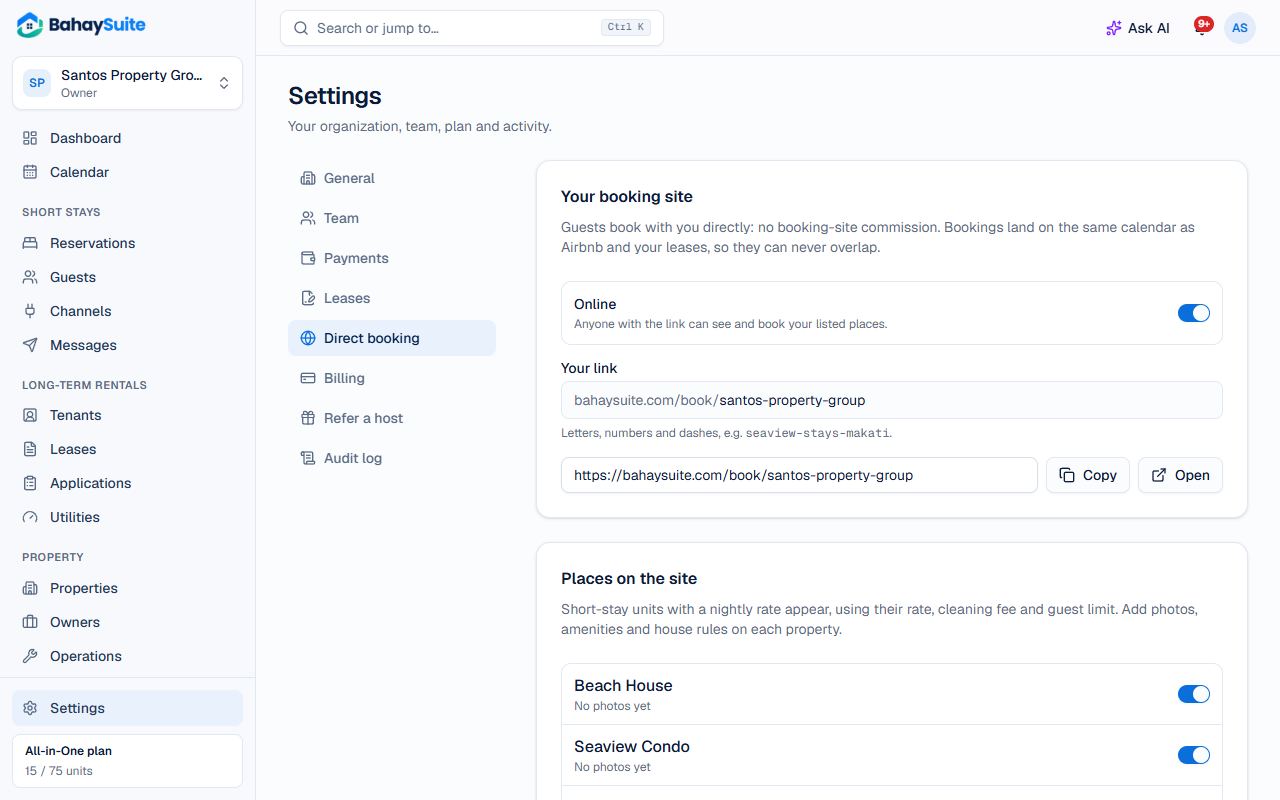
- Go to Settings → Direct booking.
- Under Places on the site, switch on the properties to list. Only short-stay units with a nightly rate appear.
- Under How bookings are confirmed, choose I approve each request or Confirmed once paid, and set how long to hold dates, minimum nights and how far ahead guests can book.
- Add a Headline and Welcome text, then Save.
- Switch the site to Online and click Copy to share your link on Facebook, Instagram or with past guests.
To add your logo, cover photo, brand color and contact links, see Make your booking site look like your own website.
Charge for extra guests
- Open the property, click the unit, and scroll to Guests.
- Set Max guests, how many the Nightly rate is for, and the fee for Each extra guest per night.
- Check Price per night below it, then click Save changes.
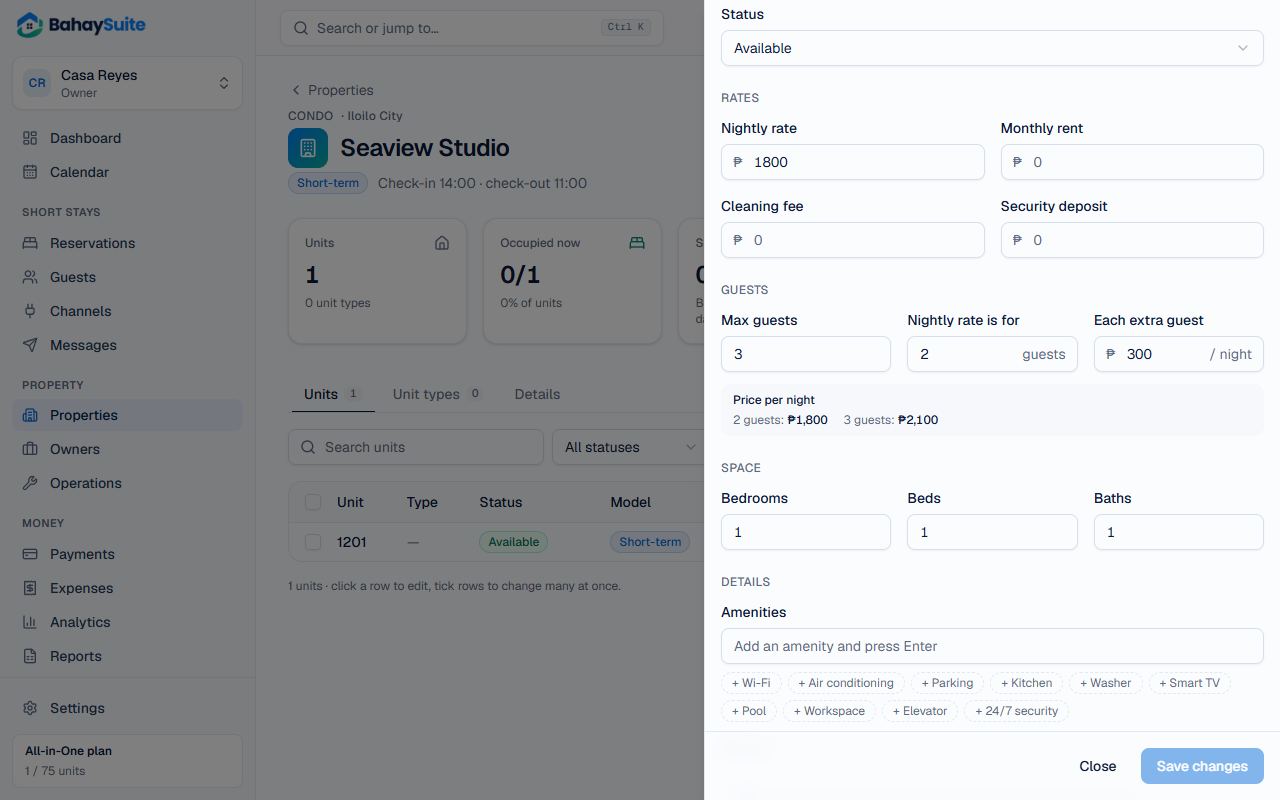
For example, ₱1,800 for 2 guests and +₱300 a night for a third: a 2-night stay for 3 guests comes to ₱4,200. Guests see the extra-guest fee as its own line before they book, and bookings you add yourself are priced the same way.
When a guest books
You get a notification and email, and a text to your business phone (Settings → General): switch that off with Text me new booking requests. Open the booking: the Booking request from your website banner shows how long the dates are held. Click Confirm, or Decline with an optional reason. The guest is emailed either way. Requests not confirmed in time are released automatically, unless the guest already sent payment.
Guests pay using the GCash, bank or QR details in Settings → Payments, or by QR Ph if you connected PayMongo.
Make the page look good
Add photos, a description, amenities and house rules on each property’s Details tab. See Add photos and amenities.