GCash, Maya and bank accounts
- Go to Settings → Payments.
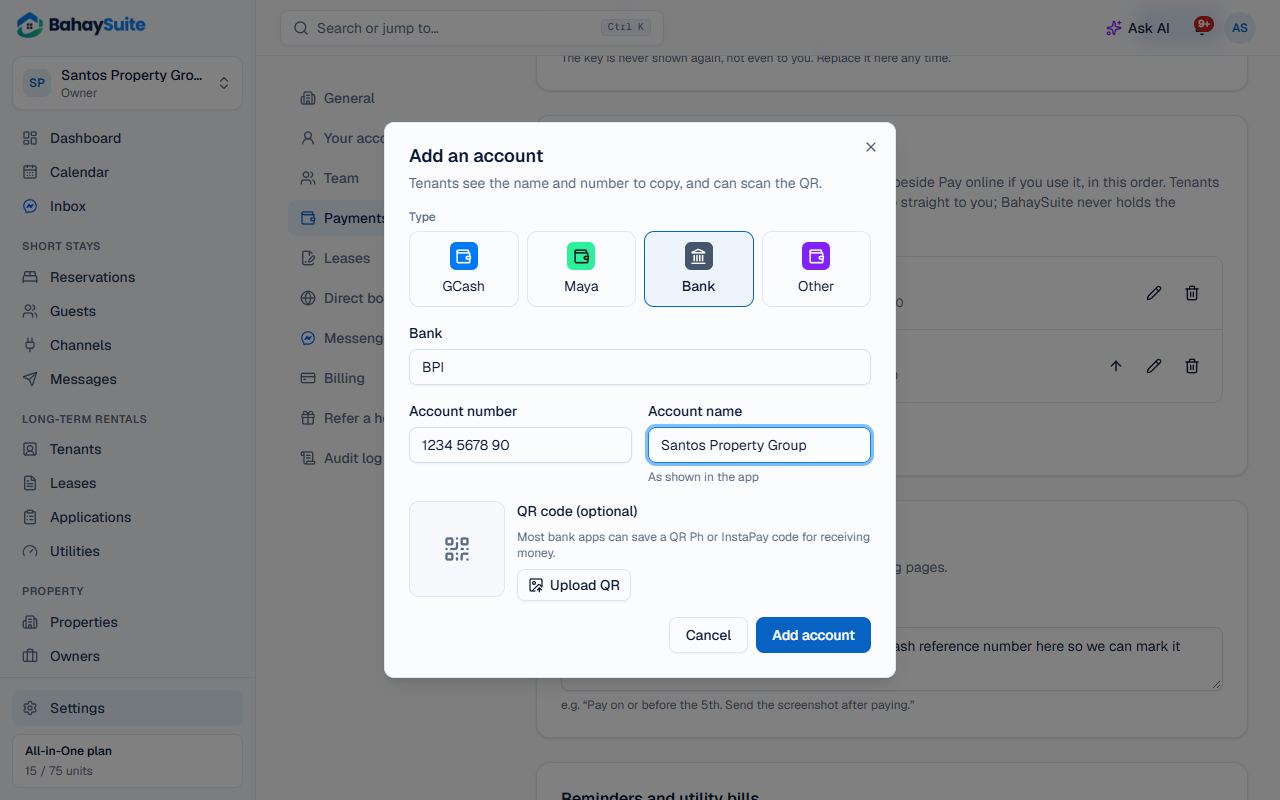
- Under GCash, Maya and bank accounts, click Add account and choose GCash, Maya, Bank or Other e-wallet.
- Fill in the number and the account name as shown in the app. For a bank, type its name, e.g. BPI.
- Add its QR if you have one (in GCash: Profile → My QR → Save QR; most bank apps can save a QR Ph code), then click Add account. Each account saves straight away.
- Add as many accounts as you use, up to 10. Use the arrow to change the order tenants see them in.
- Add any Instructions for tenants and click Save.
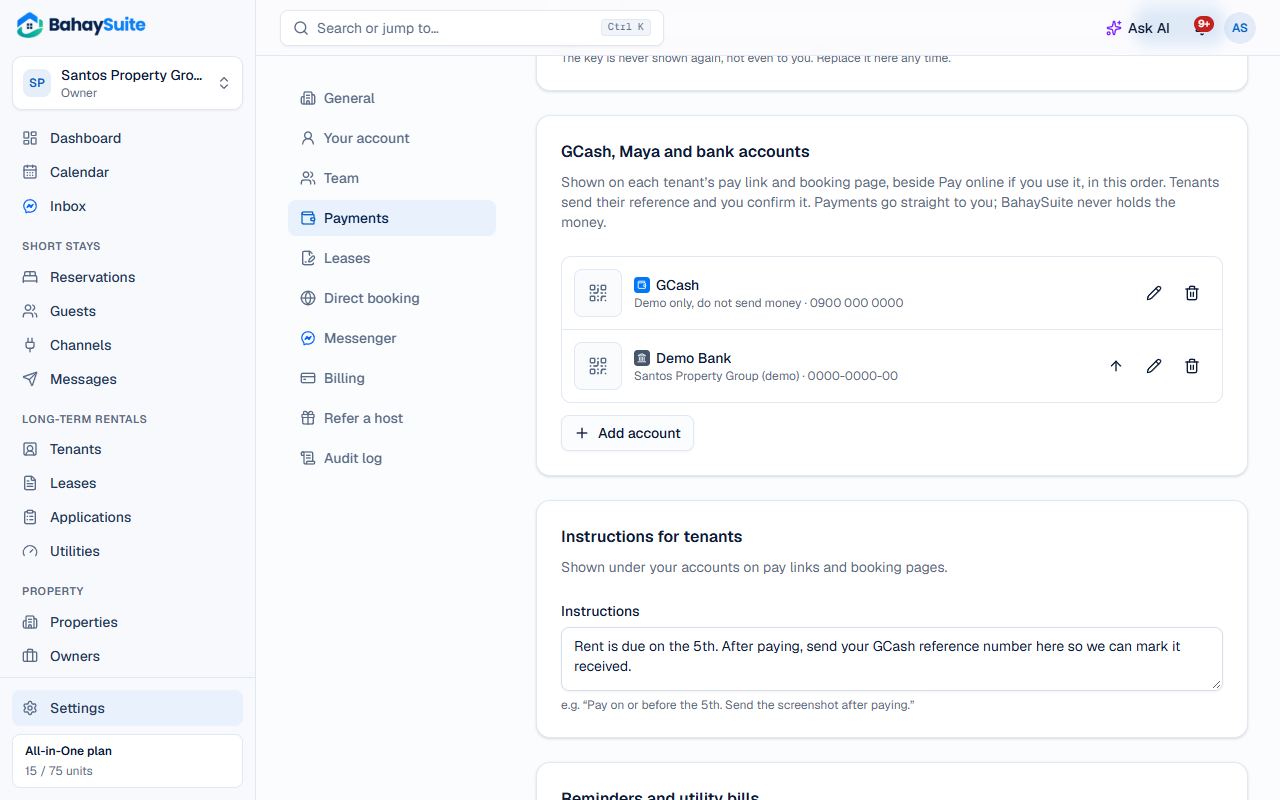
These details appear on every tenant’s pay link and on your booking site. Tenants pay you directly, then send the reference number or a screenshot. BahaySuite never holds your money.
Reminders
In the same page, under Reminders and utility bills, choose how many days before the due date to remind tenants, whether to remind on the due day, and how often while overdue. Reminders are emailed to tenants who have an email. Switch on Text tenants automatically to also send them by SMS (8am to 8pm), using the texts included in your plan. Texts come from “BahaySuite” and reach every network.
Accept QR Ph online (optional)
With your own PayMongo account, tenants and guests pay by QR Ph with any bank or e-wallet app and the payment confirms itself. PayMongo keeps 1.5% per payment and sends the rest to you.
- Open a PayMongo account with QR Ph turned on (a DTI-registered business is enough to start).
- In PayMongo, go to Developers → API keys and copy your secret key (it starts with sk_live_).
- In Settings → Payments → Online payments with QR Ph, paste it into Secret key and click Connect.
- Choose where to offer it: On tenants’ pay links and On your booking site.