



Tenants and leases
- Go to Leases and click Import (or open Import from a spreadsheet).
- Choose Choose Excel or CSV file, or copy the cells in Excel or Google Sheets and paste them into the box. The first row should be the column names.
- Check that each column is matched. BahaySuite understands English and Tagalog headers like “Pangalan”, “Upa” or “CP No.”; pick the right column for any it missed.
- Click Check. Every row is checked and nothing is saved yet.
- Read the notes, then click Import. Rows that can’t be imported are left out so you can fix them in your sheet.
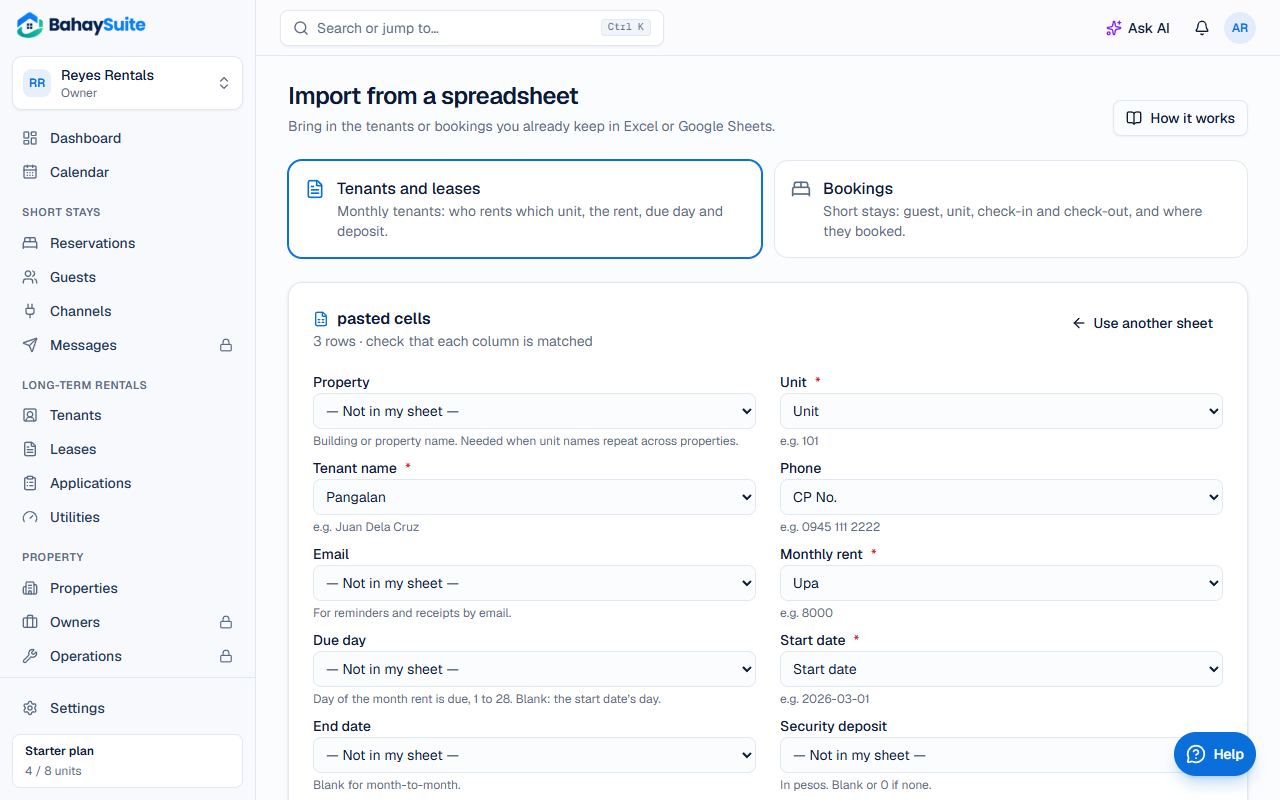
The columns BahaySuite needs are Unit, Tenant name, Monthly rent and Start date. Phone, email, due day, end date, deposit and advance are optional. Missing units are created, within your plan’s limits.
Tenants who already live there
So your list doesn’t fill up with months of “overdue” rent, rent due before today is marked as already paid, and so are the deposit and advance. To bill months that are still unpaid, add a Rent paid through column with the last month they paid, like Sep 2026. Tenants you import don’t get a welcome message.
Bookings
Go to Reservations and click Import. Each row needs the Unit, Guest name, Check-in and Check-out; the units must already be in BahaySuite. Add Booked via (Airbnb, Booking.com, Direct…) and the Confirmation code so your calendar sync recognises the booking instead of showing it twice. Cancelled rows are skipped, and importing the same sheet again skips bookings already there.