



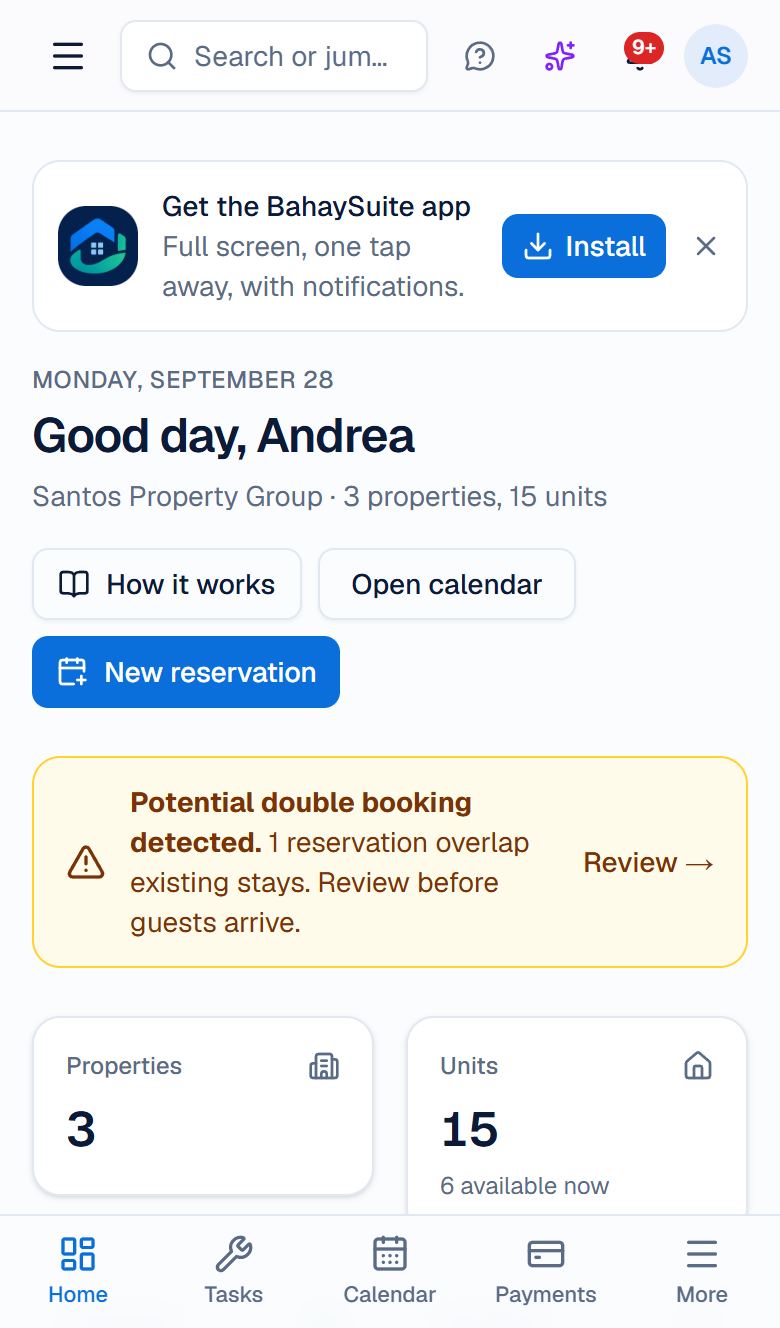
BahaySuite has a free app for iPhone on the App Store and for Android on Google Play. Sign in with the same email and password you use on the website; everything is already there.
iPhone (App Store)
- Open the App Store and search for BahaySuite, or tap Download on the App Store on bahaysuite.com.
- Tap Get, then open the app and sign in with your BahaySuite email and password, or tap Continue with Google or Sign in with Apple.
- Allow notifications when the app asks, to get alerts for bookings, payments and tasks.
Android (Google Play)
- Open Google Play and search for BahaySuite, or tap Get it on Google Play on bahaysuite.com.
- Tap Install, then open the app and sign in with your BahaySuite email and password, or Continue with Google.
- Allow notifications when the app asks, to get alerts for bookings, payments and tasks.
Notifications on a computer
- Click the bell at the top of BahaySuite.
- Click Get notifications on this device and allow notifications when asked.
- Click Test to check. You should get a notification within a few seconds.
Do this on every computer where you want alerts; each one is turned on separately. To stop, click the bell and choose Turn off. On your phone, the app handles notifications.