


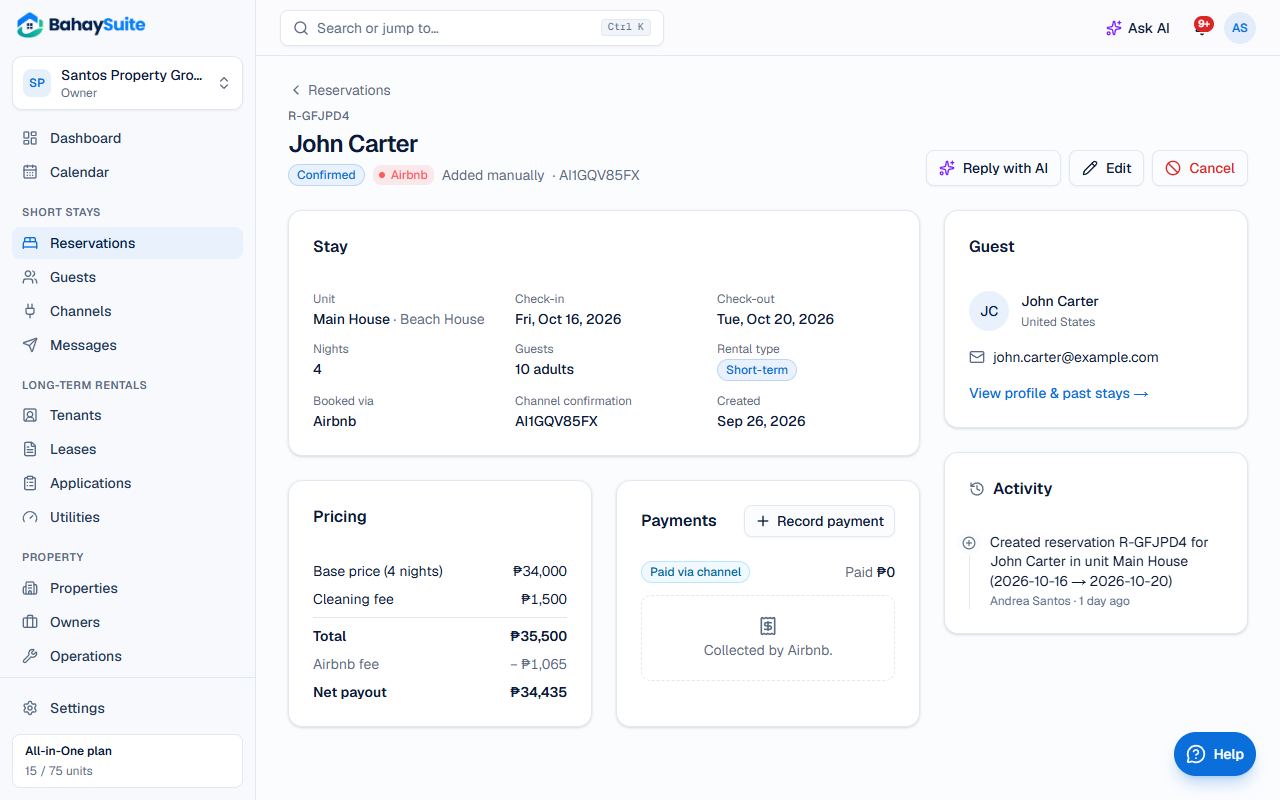
Open Reservations and click a booking, or click a booking on the Calendar and choose Open reservation. The page shows the stay, the price, payments and the balance due, and the guest.
Change dates, unit or guests
- Click Edit.
- Change Unit, Check-in, Check-out, Adults or Children. You can also set Status (for example No-show) and the prices.
- Click Save changes. If the new dates or unit are taken, you’ll see Those dates are taken and nothing changes.
Record a deposit or payment
- In Payments, click Record payment.
- The Amount starts at the balance; change it for a deposit or part payment.
- Pick the Method (GCash, Maya, cash, bank transfer…) and add the Reference.
- Click Save payment. The balance and payment status update by themselves.
Cancel a booking
- Click Cancel, add a Reason if you like, and click Cancel reservation.
- The dates open up again. The guest’s details and payments are kept. This can’t be undone.
Bookings from Airbnb or Booking.com
Bookings that come in through calendar sync follow the channel. Change or cancel them on Airbnb or Booking.com: if you change one here, the next sync puts it back the way the channel has it. When a guest cancels on the channel, the booking is cancelled here automatically.
Check-in and check-out
There’s nothing to click: stays are marked Completed automatically the day after checkout, and a cleaning task is created if you use Operations.