



- Open Expenses and click Add expense.
- Choose a Category (electricity, water, internet, cleaning, supplies, maintenance, condo dues, taxes, platform fees, staff or other), then the Amount and Date.
- Under Applies to, pick Whole business, a Property or a Unit. This can’t be changed later: delete the expense and add it again.
- Add the Vendor and Reference if you like, and click Add expense.
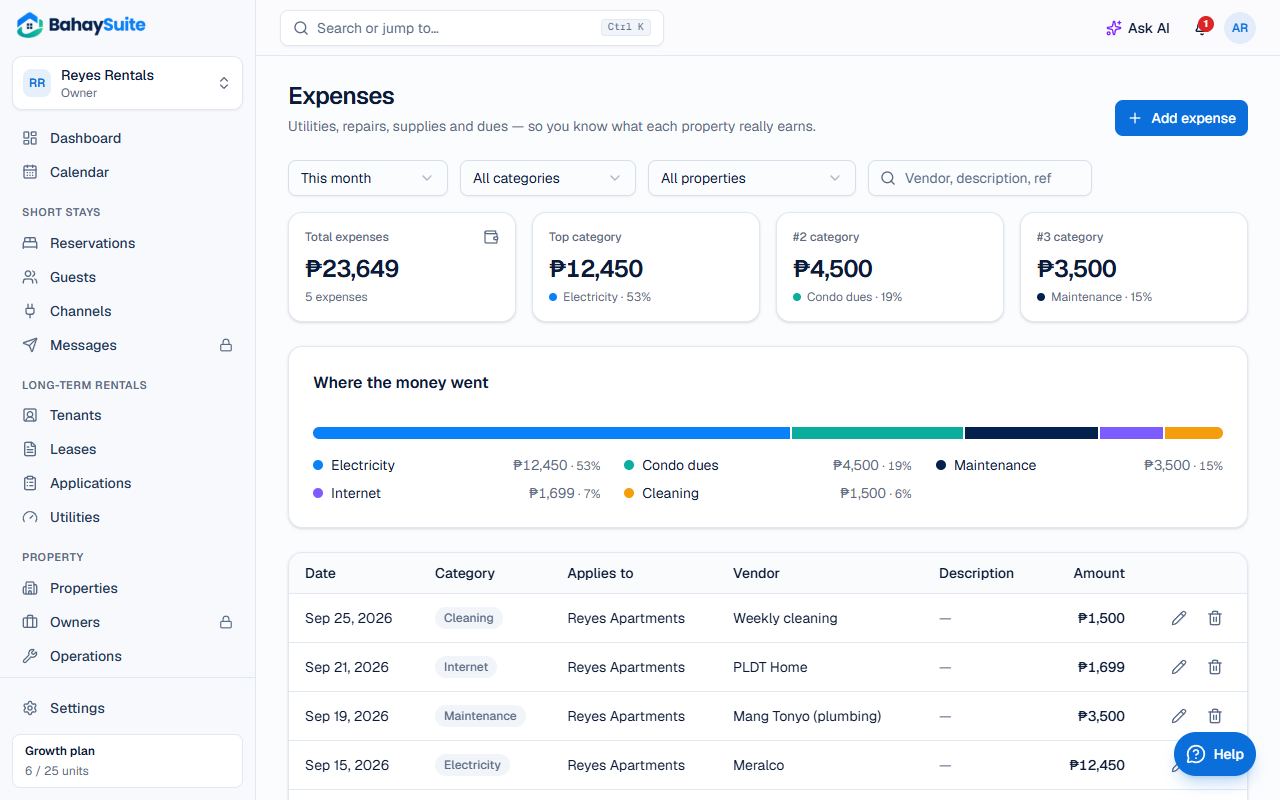
The page totals your expenses for the period you choose and shows Where the money went by category. Filter by property or search by vendor.
Attach the receipt
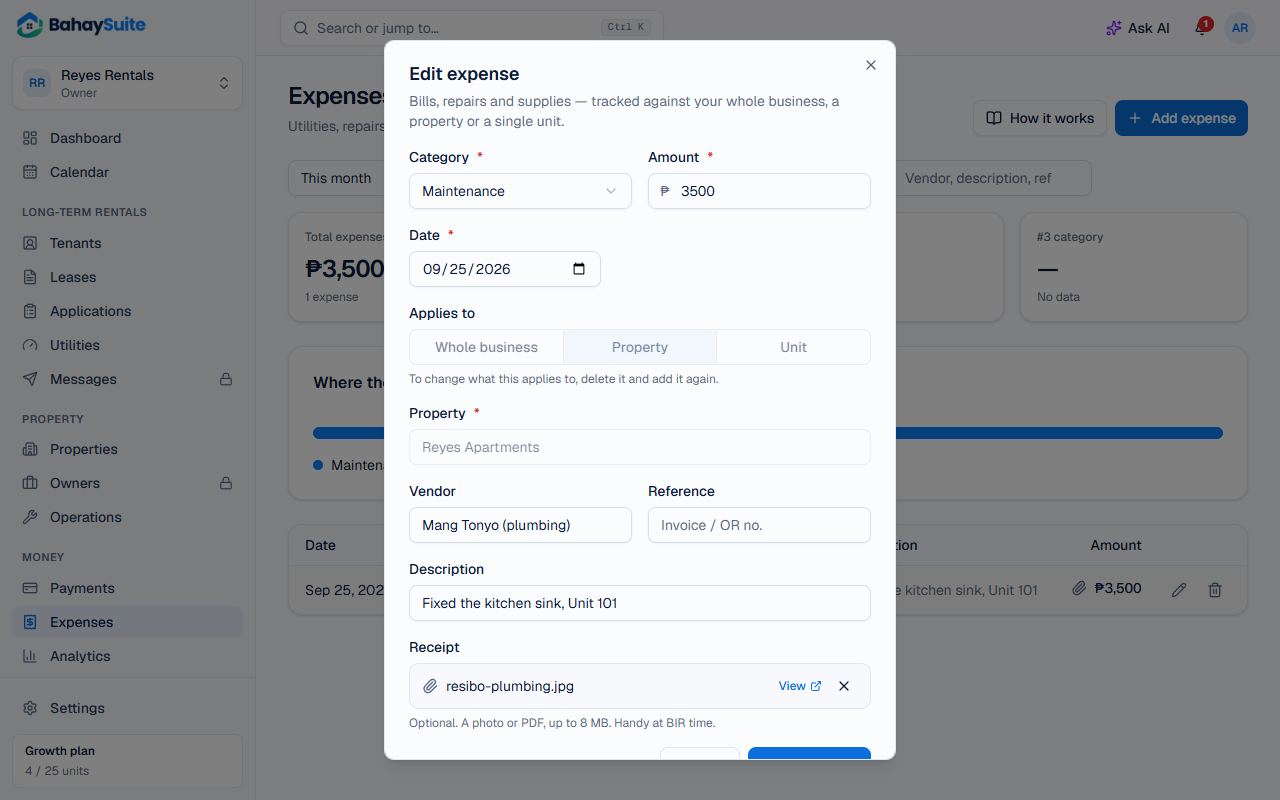
In Add expense (or when editing one), click Attach a receipt and choose a photo or PDF, up to 8 MB. Expenses with a receipt show a paperclip in the list: click it to open the receipt. To replace it, attach another; to remove it, edit the expense and click the × beside it.
Monthly expenses
Condo dues, internet, a caretaker’s salary: turn on Repeat every month when adding it. BahaySuite adds it by itself on the same day each month (the 28th for dates after the 28th). Set Stop after if it ends on a known date.
Your monthly expenses are listed under Monthly expenses with the next date. Pause one while it doesn’t apply, or delete it to stop it for good; the expenses it already added stay in your list and are marked Monthly.
Expenses are subtracted in Analytics (net revenue) and in Reports → profit & loss, so you see what each property really earns.
Part of Growth and All-in-One, or the ₱49 Expense Management add-on.